

Whales: Giants of the Ocean

Whales: Giants of the Ocean

Whales are among the largest and most remarkable animals on Earth. These marine mammals live in oceans around the world, from warm tropical waters to the cold seas surrounding the poles.

Life Beneath the Surface

Although whales spend their lives in water, they breathe air through blowholes located on top of their heads. They must regularly return to the surface to breathe before diving again in search of food or traveling through the ocean.

Whales are warm-blooded, give birth to live young, and nurse their calves with milk. A thick layer of fat called blubber helps protect them from cold water and stores energy during long migrations.

Two Main Groups

Whales are generally divided into baleen whales and toothed whales. Baleen whales filter small animals from the water using flexible plates inside their mouths. This group includes blue whales, humpback whales, and gray whales.

Toothed whales use teeth to catch fish, squid, and other prey. Many of them also use echolocation, producing sounds and listening for returning echoes to understand their surroundings. Sperm whales, belugas, and orcas belong to this group.

The Blue Whale

The blue whale is the largest known animal to have ever lived. An adult can grow longer than a city bus and weigh well over one hundred tonnes. Despite its enormous size, it feeds mainly on tiny crustaceans called krill.

Communication and Migration

Whales communicate using clicks, whistles, pulses, and complex songs. Some sounds can travel across great distances underwater. Humpback whales are especially famous for their long, patterned songs.

Many species migrate thousands of kilometres each year. They often feed in cold, nutrient-rich waters before traveling to warmer regions where they mate and give birth.

Protecting Whales

Commercial hunting once caused severe declines in many whale populations. Today, whales also face threats from fishing gear, ship collisions, underwater noise, pollution, and changes to ocean ecosystems.

Conservation programs, safer fishing practices, protected habitats, and international cooperation can help whale populations recover. Protecting whales also supports healthier oceans because these animals play an important role in marine food webs and nutrient cycles.
Parche contra pantallazo azul al imprimir

En los últimos días ha sido frecuente que al imprimir un documento nuestro ordenador nos mostrase el famoso pantallazo azul y a continuación el equipo se reiniciase.

Microsoft ha reconocido que la causa del problema es una actualización de Marzo y ya está disponible la solución.

El nombre de la actualización es KB5001567. El nombre es más complicado que aplicar la citada actualización. Lo único que hay que hacer es:

Ir a  «Configuración» entrar en «Actualización y seguridad» y luego en «Actualización de Windows». Elegir todas las actualizaciones y aplicar

Si esto fallase entonces descarga directamente el parche desde https://www.catalog.update.microsoft.com/Search.aspx?q=KB5001567

Desactivar las actualizaciones de Windows 10

Las actualizaciones de Windows han sido siempre motivo de controversia entre usuarios de Windows, llegan cuando menos te lo esperas, muchas veces en el momento mas inoportuno y además en muchas ocasiones generan ciertos problemas en el sistema. Con la llegada de Windows 10 Fall Creators Update, la opción de desactivar el servicio de actualizaciones de Windows ya no está disponible, sin embargo, todavía hay otra opción para desactivar las actualizaciones automáticas en Windows 10.

Para conseguir desactivar las actualizaciones automáticas en Windows 10 y permitir que únicamente se actualice el sistema de manera manual, lo que vamos a hacer es cambiar los permisos de la herramienta responsable en comprobar si existen actualizaciones.

Este proceso no afectará a las actualizaciones de Windows Defender, ya que se seguirán descargando de forma automática en el sistema. Sin embargo, conseguiremos desactivar las actualizaciones automáticas para que únicamente se puedan realizar actualizaciones manuales.

actualizaciones automáticas en Windows 10

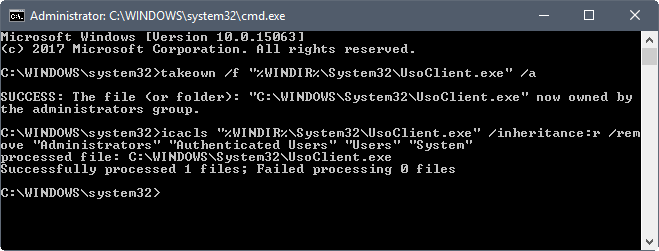
Lo que tenemos que hacer es abrir una ventana del símbolo del sistema con permisos de administrador.

Debemos tener permisos de propietario del fichero UsoClient.exe, para lo cual ejecutamos el comando:

takeown /f “%WINDIR%\System32\UsoClient.exe” /a,

A continuación, eliminamos los permisos para los grupos de usuarios seleccionados del archivo, ejecutamos el comando:

icacls “%WINDIR%\System32\UsoClient.exe” /inheritance:r /remove “Administrators” “Authenticated Users” “Users” “System”

Tras estas dos sencillas ordenes las actualizaciones automáticas de Windows 10 se habrán desactivado correctamente.

Si en algún momento queremos volver a restaurar los permisos y que se vuelvan a activar las actualizaciones automáticas, tendremos que volver a abrir una ventana del símbolo del sistema con permisos de administrador y ejecutar el comando:

icacls “%WINDIR%\System32\UsoClient.exe” /reset.